

Below is the working instructions to protect a Kubernetes Dashboard behind an OAUTH2 -proxy exposed by an nginx-ingress. The key difference here to other documentation is that we use a Network Load Balancer where TLS is terminated there and we regard our internal namespace on the private network side of the cluster as trusted.
Technologies used in this example:
- Amazon Elastic Kubernetes Service , Route53 & Amazon Certificate Manager
- Kubernetes version is 1.28 (in this example I used one t3a.medium node)
- Ingress-NGINX (Version 1.8.2 in this example)
- OAUTH2-PROXY (v.7.5.1 in this example)
- Kubernetes Dashboard (Version 2.7.0 in this example )
- Github’s OAUTH provider
This guide assumes you’re using AWS, but with some modification could be applied elsewhere.
[!NOTE] Versions of Kubernetes dashboard after 2.7.0 (aka the great abandonment of simplicity) will not work out of the box with this guide
I’m yet to get this working 100% but as a hint, you’ll need to point at the dashboard kong proxy
Step 1 – Generate our certificate
We will need to create a certificate to use with our ingress-NGINX controller. Whether you use a wildcard certificate or a specific subdomain is up to your use-case and how many controllers/applications you intend to deploy. For this example we’re going to use ACM to generate a wildcard certificate for our domain and attach that to our controller.
I won’t go into detail here about how to generate certificates in ACM, you can find those instructions here but suffice to say the end result should look like the below screenshot.
Click into the record and copy the ARN -for use later- which should look like:
arn:aws:acm:region-1:accountID:certificate/1234567890…

Step 2 – Deploying the NLB controller
Deploy ingress-NGINX using the guide here: Installation Guide – Ingress-Nginx Controller (kubernetes.github.io)
[!Note] You could also do this step with helm with some custom arguments: it would make it easier to upgrade the controller too. However, that’s outside the scope of this document.
As we want TLS termination at the AWS NLB level we’ll use the following:
wget -v https://raw.githubusercontent.com/kubernetes/ingress-nginx/controller-v1.8.2/deploy/static/provider/aws/nlb-with-tls-termination/deploy.yaml -O Ingress-Nginx-Controller-Deployment.yml
We need to make some customisations as shown in the documentation, so fire up your favorite text editor and edit the Nginx-Controller-Deployment.yml with the following modifications, namely:
- Replace: proxy-real-ip-cidr: XXX.XXX.XXX/XX with your VPC’s CIDR. You can find this as shown in the screenshot below:

- Replace: arn:aws:acm:us-west-2:XXXXXXXX:certificate/XXXXXX-XXXXXXX-XXXXXXX-XXXXXXXX with your AWS certificate ARN that we generated in step 1, above.
Deploy the modified file with the following command:
kubectl create -f Ingress-Nginx-Controller-Deployment.yml
You should see that the controller comes to the ready state:
$ kubectl get pods -n ingress-nginx
NAME                                       READY   STATUS      RESTARTS   AGE
ingress-nginx-admission-create-zpwh6       0/1     Completed   0          20h
ingress-nginx-admission-patch-c9x5w        0/1     Completed   0          20h
ingress-nginx-controller-77dbbdcdd-dqtpv   1/1     Running     0          20h
Now check your AWS Console > EC2 > Load Balancers and verify that (after a few minutes) the Network Load balancer is in the Active state. It should look something like this:
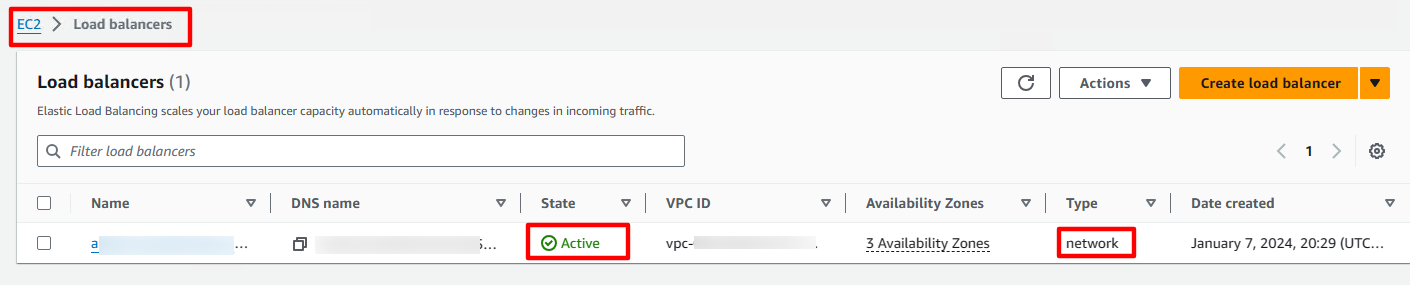
You should note that if you click into the NLB and go to ‘Listeners’ you observe that the wildcard certificate is attached to your TLS:443 listener.
Step 3 – Create your DNS record
In the AWS console > Route53 > Hosted Zones > [your domain name] select “Create Record”. Then populate the details as shown in the screenshot below:
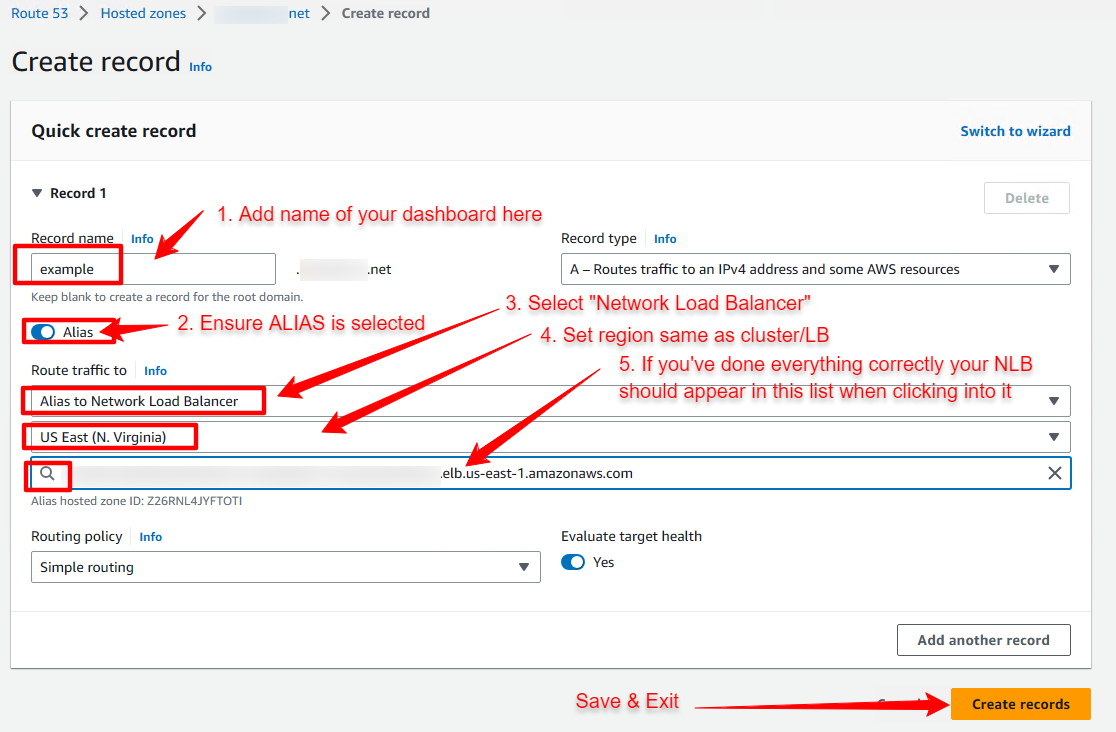
Step 4 – Get your OAUTH provider ready
In this example we’ll be using GITHUB but the oauth2 proxy allows you to select from many providers as shown in this documentation [github.io]
- Go to github.com and sign in
- Go to Settings > Developer Settings > OAuth Apps and hit “New OAuth App”
- Populate the application name, description and logo as it pleases you
- Set the Homepage URL to match your Route53 DNS record above
- Set the Authorization Callback URL to: https://_yourdnsname.yourdomain.com _/oauth2/callback
- Copy and save the Client ID string for later
- Generate a Client Secret and note down securely for later
Step 5 – Deploy the OAUTH2 Proxy
You can follow along with this guide: External OAUTH Authentication
[kubernetes.github.io]
OR you can use my deployment/service/ingress yaml files below. These are taken from the same guide
but modified so that I can have the secrets stored outside the deployment file and can have my kubernetes-dashboard in a different namespace to my proxy stuff.
[!CAUTION]+IMPORTANT POINT Make sure you set your email-domain= to your company’s email domain (or your personal domain where you also have an email address registered), otherwise anyone with a Github account can authorise themselves! I’d recommend to also restrict by Github user, if you can deal with the extra administrative overhead, see the documentation for further details
Firstly, create the secrets required which will be:
- The OAUTH_PROXY_CLIENT_ID – this is the client ID in your Github OAuth app
- OAUTH2_PROXY_CLIENT_SECRET – this is the client secret you generated in github
- OAUTH2_PROXY_COOKIE_SECRET – generate this using the following command:
python3 -c 'import secrets,base64; print(base64.b64encode(base64.b64encode(secrets.token_bytes(16))));'
Now customise the below commands with the values as explained in the above paragraph and run them. Notice how I put a space at the start of the command, this will stop it being saved in the bash history file if your profile is set with HISTCONTROL=ignorespace (or ignoreboth)
 kubectl create -n kube-system secret generic client-id --from-literal=oauth2_proxy_client_id=[fill this in]
 kubectl create -n kube-system secret generic client-secret --from-literal=oauth2_proxy_client_secret=[fill this in]
 kubectl create -n kube-system secret generic cookie-secret --from-literal=oauth2_proxy_cookie_secret=[fill this in]
Now create the deployment:
apiVersion: v1
kind: Service
metadata:
  labels:
    k8s-app: oauth2-proxy
  name: oauth2-proxy
  namespace: kube-system
spec:
  ports:
  - name: http
    port: 4180
    protocol: TCP
    targetPort: 4180
  selector:
    k8s-app: oauth2-proxy
apiVersion: apps/v1
kind: Deployment
metadata:
  labels:
    k8s-app: oauth2-proxy
  name: oauth2-proxy
  namespace: kube-system
spec:
  replicas: 1
  selector:
    matchLabels:
      k8s-app: oauth2-proxy
  template:
    metadata:
      labels:
        k8s-app: oauth2-proxy
    spec:
      containers:
      - args:
        - --provider=github
        - --email-domain=[YOUR DOMAIN HERE]
        #allow logins by username, separated by a comma:
        #- --github-user=""
        #- --github-org=""
        #- --github-team=""
        - --upstream=file:///dev/null
        - --http-address=0.0.0.0:4180
        # https://oauth2-proxy.github.io/oauth2-proxy/docs/configuration/oauth_provider#github-auth-provider
        # Register a new application
        # https://github.com/settings/applications/new
        env:
        - name: OAUTH2_PROXY_CLIENT_ID
          valueFrom:
            secretKeyRef:
              name: client-id
              key: oauth2_proxy_client_id
        - name: OAUTH2_PROXY_CLIENT_SECRET
          valueFrom:
            secretKeyRef:
              name: client-secret
              key: oauth2_proxy_client_secret
        - name: OAUTH2_PROXY_COOKIE_SECRET
          valueFrom:
            secretKeyRef:
              name: cookie-secret
              key: oauth2_proxy_cookie_secret
        image: quay.io/oauth2-proxy/oauth2-proxy:latest
        imagePullPolicy: Always
        name: oauth2-proxy
        ports:
        - containerPort: 4180
          protocol: TCP

---

apiVersion: v1
kind: Service
metadata:
  labels:
    k8s-app: oauth2-proxy
  name: oauth2-proxy
  namespace: kube-system
spec:
  ports:
  - name: http
    port: 4180
    protocol: TCP
    targetPort: 4180
  selector:
    k8s-app: oauth2-proxy
Once you’ve done customising this file, apply it with:
kubectl apply -f oauth2-deployment.yml (or whatever filename you saved it as)
Now create the Ingress:
apiVersion: networking.k8s.io/v1
kind: Ingress
metadata:
  annotations:
    nginx.ingress.kubernetes.io/auth-url: "https://$host/oauth2/auth"
    nginx.ingress.kubernetes.io/auth-signin: "https://$host/oauth2/start?rd=$escaped_request_uri"
  name: external-auth-oauth2
  namespace: kubernetes-dashboard
spec:
  ingressClassName: nginx
  rules:
  - host: yourchosenname.yourdomain.com
    http:
      paths:
      - path: /
        pathType: Prefix
        backend:
          service:
            name: kubernetes-dashboard
            port:
              number: 80
---

apiVersion: networking.k8s.io/v1
kind: Ingress
metadata:
  name: oauth2-proxy
  namespace: kube-system
  annotations:
spec:
  ingressClassName: nginx
  rules:
  - host: yourchosenname.yourdomain.com
    http:
      paths:
      - path: /oauth2
        pathType: Prefix
        backend:
          service:
            name: oauth2-proxy
            port:
              number: 4180
Once you’ve done customising the ingress file, apply it with:
kubectl apply -f ingress.yml (or whatever filename you saved it as)
Step 6 – Deploy the Kubernetes Dashboard
In one super simple step, apply the following:
kubectl apply -f https://raw.githubusercontent.com/kubernetes/dashboard/v2.7.0/aio/deploy/alternative.yaml
Check your dashboard has come to the ready state:
$ kubectl get pods -A | grep -i dashboard
kube-system     dashboard-metrics-scraper-5657497c4c-qntqx   1/1     Running     0    157m
kube-system     kubernetes-dashboard-77c956dc95-772hl        1/1     Running     0   157m
Step 7 – Testing
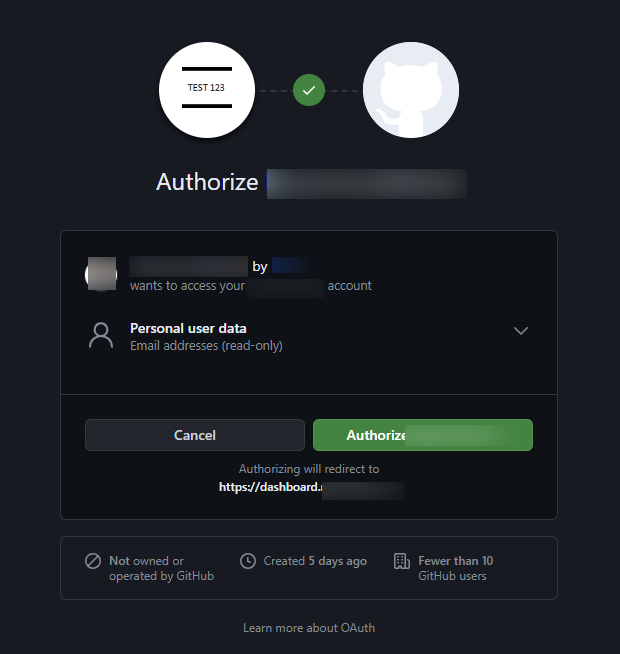
Browse to your URL and you should be redirected to the Github OAuth approval page:
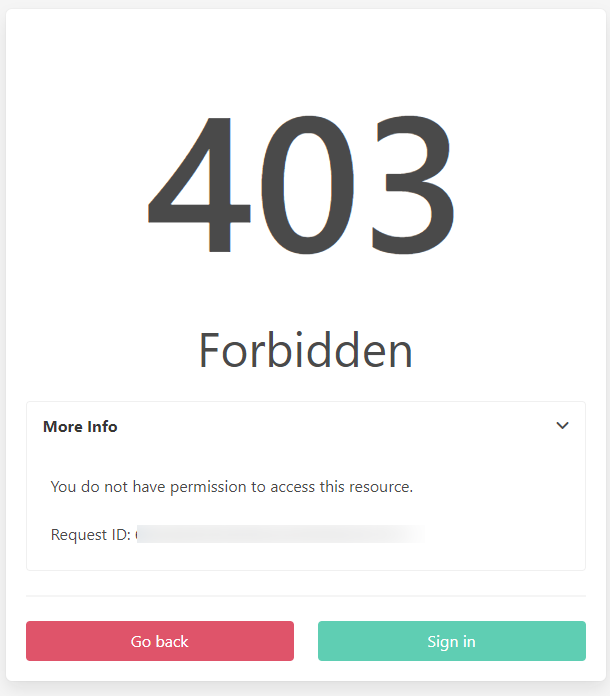
If you’ve set things up correctly and you’ve set the email domain, anyone outside your company/email org or other restrictions should get the following message:
Whereas, if you authenticate, you should see the following:
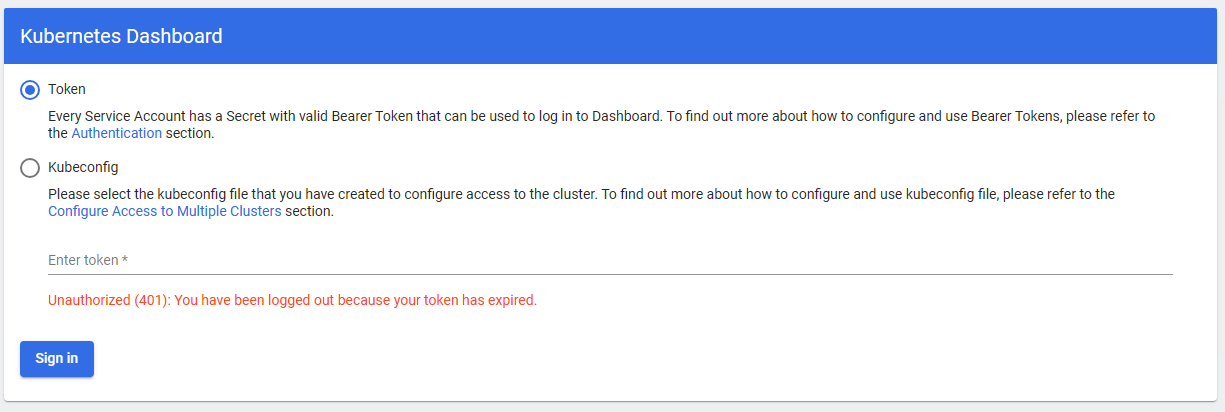
NB: A lot of guides will have you set things up so this logs you in automatically. That wasn’t the point of this exercise though, I wanted to restrict the dashboard access to only people assigned an email address with my domain. Further access is then granted using tokens which can be generated using the instructions from the Kubernetes Dashboard page
Please do explore the other restrictions on offer as listed here [github.io]